
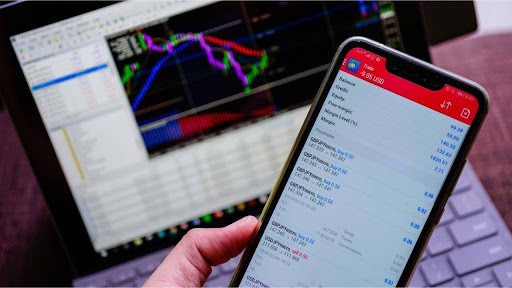
Default platform settings are designed for broad use, not for one trader’s strategy. Chart appearance, trade-level visibility and automated permissions can all change how quickly a position is understood or how easily an operational error occurs.
In metatrader 4, customisation is most useful when it makes price, exposure and order behaviour clearer. Decorative changes matter far less than knowing which price triggers an order, whether protective levels are visible and what an Expert Advisor is allowed to do.
Make Bid, Ask and Trade Levels Visible
MT4 charts commonly display the bid price. Buy orders execute at the ask, while sell orders execute at the bid. The difference is the spread.
Showing the ask line can explain why a buy-stop order activates even though the visible chart appears not to have reached the entry. It can also clarify why a short position closes at its stop while the bid-price candle remains slightly below that level.
This becomes especially relevant during economic releases, when spreads may widen. A trader watching only the bid chart can misread a spread-driven trigger as an unexplained execution problem.
The “Show trade levels” setting places entries, pending orders, stops and targets directly on the chart. That visual reference makes accidental missing stops easier to notice.
Experienced traders often display fewer objects but make every live order obvious. Beginners sometimes fill the chart with analysis while the account’s actual exposure remains hidden in a separate window.
The most useful line may be the one connected to money.
Adjust Chart Movement and History
Auto Scroll keeps the newest price activity visible. Chart Shift creates space between the latest candle and the right edge, making approaching support or resistance easier to read.
Both settings affect observation rather than market data. A chart pressed against the edge can make a breakout feel abrupt because there is no visual room for planned levels beyond current price.
The platform also allows users to adjust the maximum number of bars stored and displayed. More history can help long-term analysis and indicator calculations, but loading an unnecessarily large dataset across many charts may reduce performance on modest hardware.
Counterintuitively, displaying more data does not always improve analysis. A short-term strategy may need recent session structure, not years of minute-by-minute prices.
Templates can preserve colours, indicators and chart settings for repeated use. Profiles save groups of charts and their arrangement. A European-session profile might contain EUR/USD, GBP/USD and a dollar-related instrument, while another profile supports end-of-day review.
Treat One-Click Trading as a Risk Setting
One-click trading removes the confirmation window between selecting buy or sell and submitting the order. It can save time for short-term strategies, but it also sends incorrect volume and direction immediately.
Consider EUR/USD consolidating before a US employment report. Weaker payroll growth sends the pair above resistance, and a trader buys the breakout. The order enters at 1.00 lot because that volume remained selected from an earlier setup, rather than the usual 0.20 lot.
Minutes later, firm wage growth and upward revisions cause the dollar to recover. EUR/USD returns to the range, creating a false breakout. The incorrect volume multiplies the loss before the trader notices the setting.
The market move created the losing setup. The platform configuration determined its scale.
A confirmation window may feel slow, but that extra step can catch an operational mistake. One-click execution is most appropriate when position size has already been calculated and the trader follows a fixed pre-entry check.
Sound alerts deserve similar thought. Useful notifications highlight order execution, disconnection or price levels. Constant audio from every tick or minor event creates noise and makes the important alert easier to miss.
Control Automated Trading Permissions
Expert Advisors can analyse prices, manage stops and place orders according to coded rules. MT4 provides settings controlling whether automated trading is permitted and how programs interact with external functions.
Permissions should match the tool’s purpose. An indicator that only displays information may not need trading access. An Expert Advisor designed to manage live positions does, but it should first be tested on a demo account under the intended broker’s conditions.
When automated trading is disabled, the program may continue displaying signals while failing to execute orders. When it is enabled too broadly, untested code can open positions unexpectedly.
For metatrader 4, platform security also includes protecting account credentials and separating investor access from trading access where applicable. A read-only login should not be mistaken for a full trading password.
Before the next live session, complete a five-minute settings audit. Show the ask line and trade levels, confirm Auto Scroll and Chart Shift, load the correct template, verify the selected lot size and check automated permissions. Then place one demo order with a stop and target. If any part of the position is not immediately visible on the chart, correct the layout before using live funds.